Object Generation Meshy AI
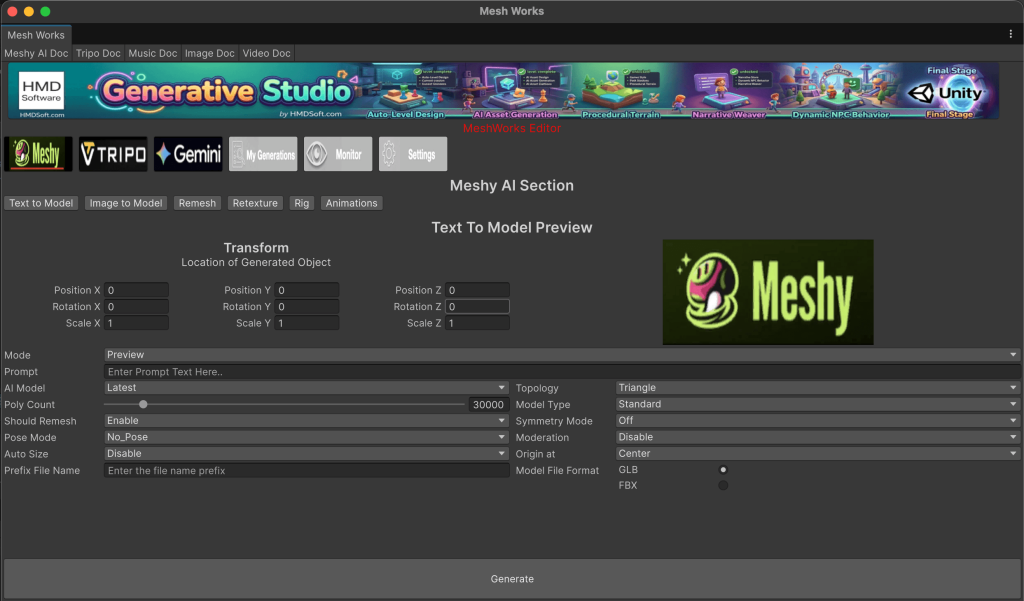
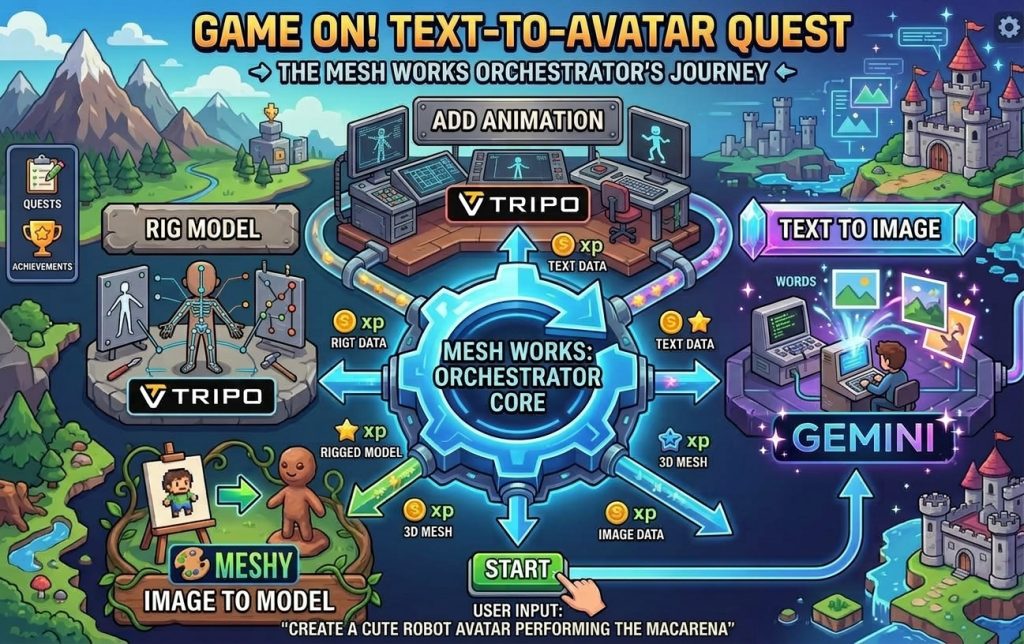
Mesh Works bridges Meshy AI and the Unity Editor. Users configure generation parameters—including prompts, AI model selection, topology, output format, and file names—directly within the UI. Once Meshy AI processes the request, Mesh Works automatically delivers production-ready 3D assets into Unity.

Sub Functions
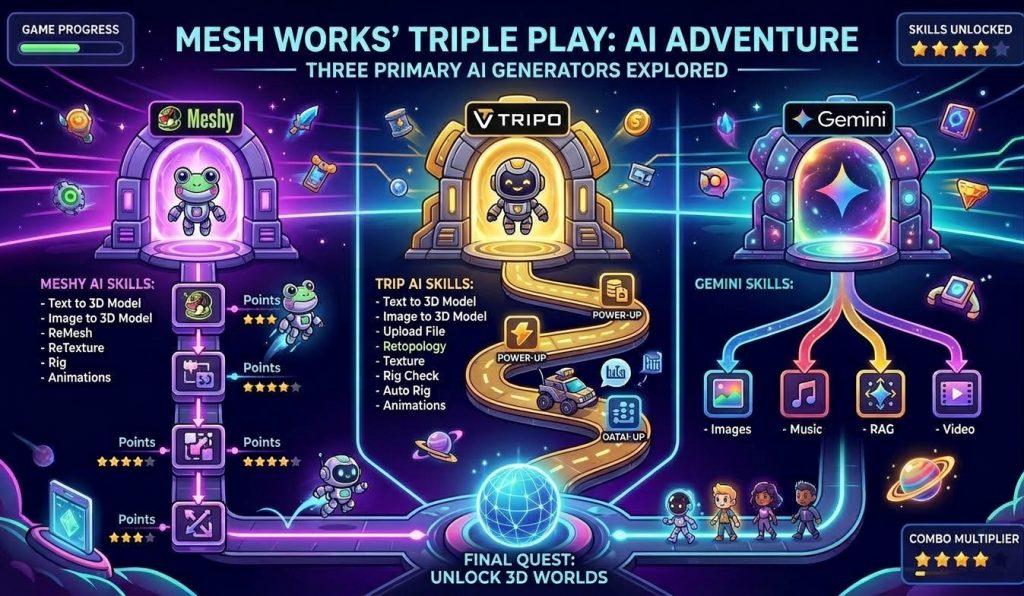
Text to Model: Integrates Meshy’s Text to 3D capabilities with the Unity Editor. Text to 3D uses a two-step workflow. First, create a preview task”preview”) to generate a 3D mesh without texture, so you can evaluate the shape. Then, pass the completed preview task’s ID to a refine task to apply texture to the mesh.
Image to Model: Brings Meshy’s Image-to-3D and Multi-Image-to-3D technology straight to Unity. Effortlessly convert visual references into high-fidelity 3D assets.
Remesh: Seamlessly remesh and export 3D assets generated by Meshy’s Text-to-3D or Image-to-3D APIs into multiple formats, directly within the Unity Editor.
Retexture: Modify a 3D object’s texture while preserving its underlying mesh. Simply describe the desired changes with a text prompt—such as switching from stripes to a checkered pattern—and update your asset instantly from the Unity Editor.
Rig: Automatically generate and bind humanoid armatures to your 3D models directly within Unity, preparing your meshes for instant animation.
Animations: Access hundreds of pre-built animations directly inside Unity. Seamlessly browse, select, and apply animations to any rigged character with a single click.
Object Generation Tripo
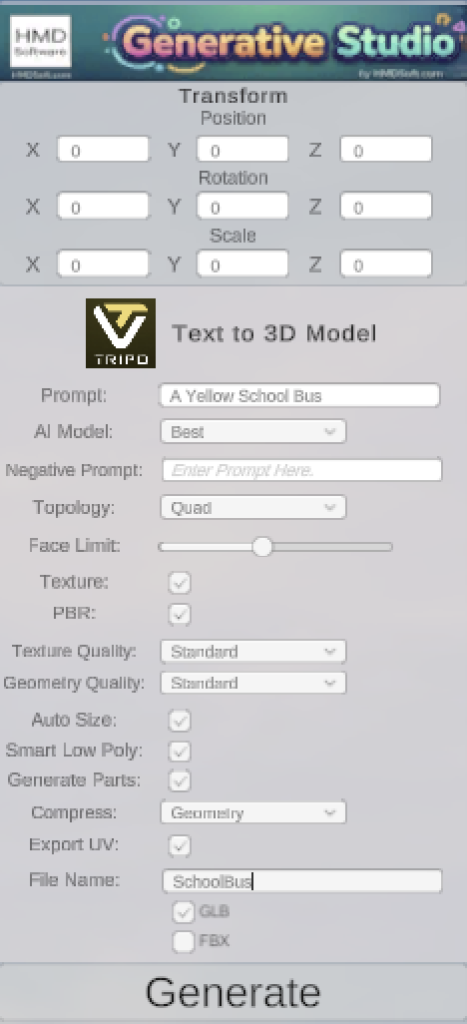
Mesh Works bridges Tripo and the Unity Editor. Users configure generation parameters—including prompts, AI model selection, topology, output format, and file names—directly within the UI. Once Tripo processes the request, Mesh Works automatically delivers production-ready 3D assets into Unity.

Sub Functions
Text to Model: Integrates Tripo’s Text to 3D capabilities with the Unity Editor. Generates a 3D model from a text prompt. Produces geometry, optional textures, and optional PBR material maps.
Image to Model: Brings Tripo’s Image-to-3D and Multi-Image-to-3D technology straight to Unity. Generate a 3D model from an image. The system infers geometry and texture from the input.
Upload Image: Upload Images and Models to the Tripo Server for future processing. Every uploaded file returns a file_token for future requests.
Mesh Complete: Officially named Mesh Part Completion, this feature allows Tripo to complete segmented mesh parts and repair missing regions directly inside the Unity Editor upon request.
Texture: Regenerate texture maps for an existing 3D model. The model meshes will remain unchanged.
Auto Rig: Automatically add a skeleton rig to a 3D model. Run rig-check first to verify compatibility, all from the Unity Editor.
Animations: Animation Retargeting delivers a requested animation for 3D Model.
Gaussian Splat: Gaussian Splatting is a modern 3D representation well-suited for high-quality real-time rendering and photorealistic scene reconstruction. The Gaussian Splatting is driven with the input of a single image.
Music Generation
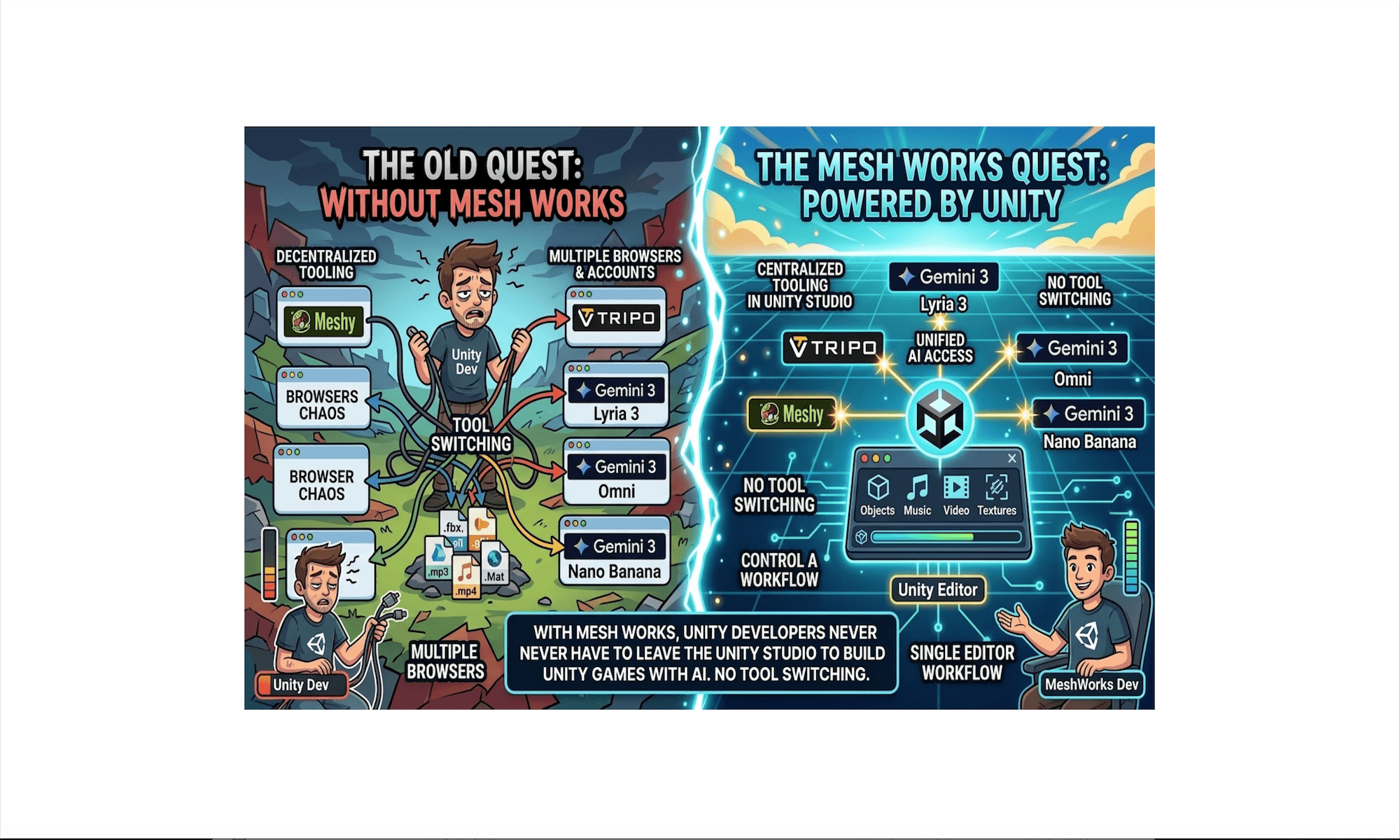
Mesh Works connects Google’s Gemini Lyria 3 directly with the Unity Editor, turning textual audio descriptions into high-fidelity compositions.
Key Features & Capabilities
- Structural Audio Generation: Delivers production-ready audio assets directly into Unity, complete with full song structures, verses, choruses, and vocals.
- Intelligent Composition: Leverages Lyria 3 to interpret requests with deep musical awareness and structural coherence.
- Direct Pipeline Integration: Streamlines game audio development by automatically routing generated musical compositions into your Unity project.

Video Generation
Mesh Works connects Google’s Gemini Omni directly to the Unity Editor, enabling true multimodal video generation and texture rendering for game developers. Rather than generating simple video outputs, the platform processes and reasons across multiple input types to produce refined visual assets directly within your workspace.
Supported Inputs & Workflow
- Text Prompts: Scene descriptions, scripts, and structural instructions.
- Images: Visual references, static assets for animation, and style targets.
- Audio: Voice tracks, music, and ambient soundscapes used as compositional guides.
- Video Clips: Existing footage for style transfer, video continuation, and editing.
Core Output
Automatically converts processed video reasoning into high-resolution, production-ready rendered textures delivered straight into your Unity pipeline.

Texture Generation
Mesh Works seamlessly connects Google’s Gemini Nano Banana with the Unity Editor, enabling creators to generate 3D assets using plain text prompts.
Key Features & Capabilities
- Versatile Creation: Generates textures, sprites, and materials from detailed, realistic, or whimsical descriptions.
- Automated Workflow: Translates text inputs into production-ready 3D assets automatically within Unity.
- Direct Integration: Eliminates manual asset importing by feeding generated outputs straight into your project pipeline.

My Generations
My Generations: Instantly preview and import 3D assets created with Meshy AI or Tripo AI. Simply click any thumbnail to spawn its corresponding prefab straight into your current Unity scene.

Generation Monitor
Generation Monitor: While most AI generations complete in seconds, complex requests can take several minutes. The Generation Monitor tracks these long-running tasks. Each step within the monitor includes a unique Generation ID—supported by providers like Tripo, Meshy, and Gemini—which you can retrieve and use for subsequent generation requests.

Setting and Subscriptions
Settings and Subscriptions: Start here before using Mesh Works. First, configure your API keys for each AI service subscription you plan to use. Generating production-ready assets without valid subscription keys will cause errors. You can also customize Mesh Works’ operational settings in this section.

Some Examples: