- Text/Image to Image
- Text to 3D Model
- Image to 3D Model
- Remesh Model
- Retexture Model
- Rigging Model
- Animations
- Task IDs
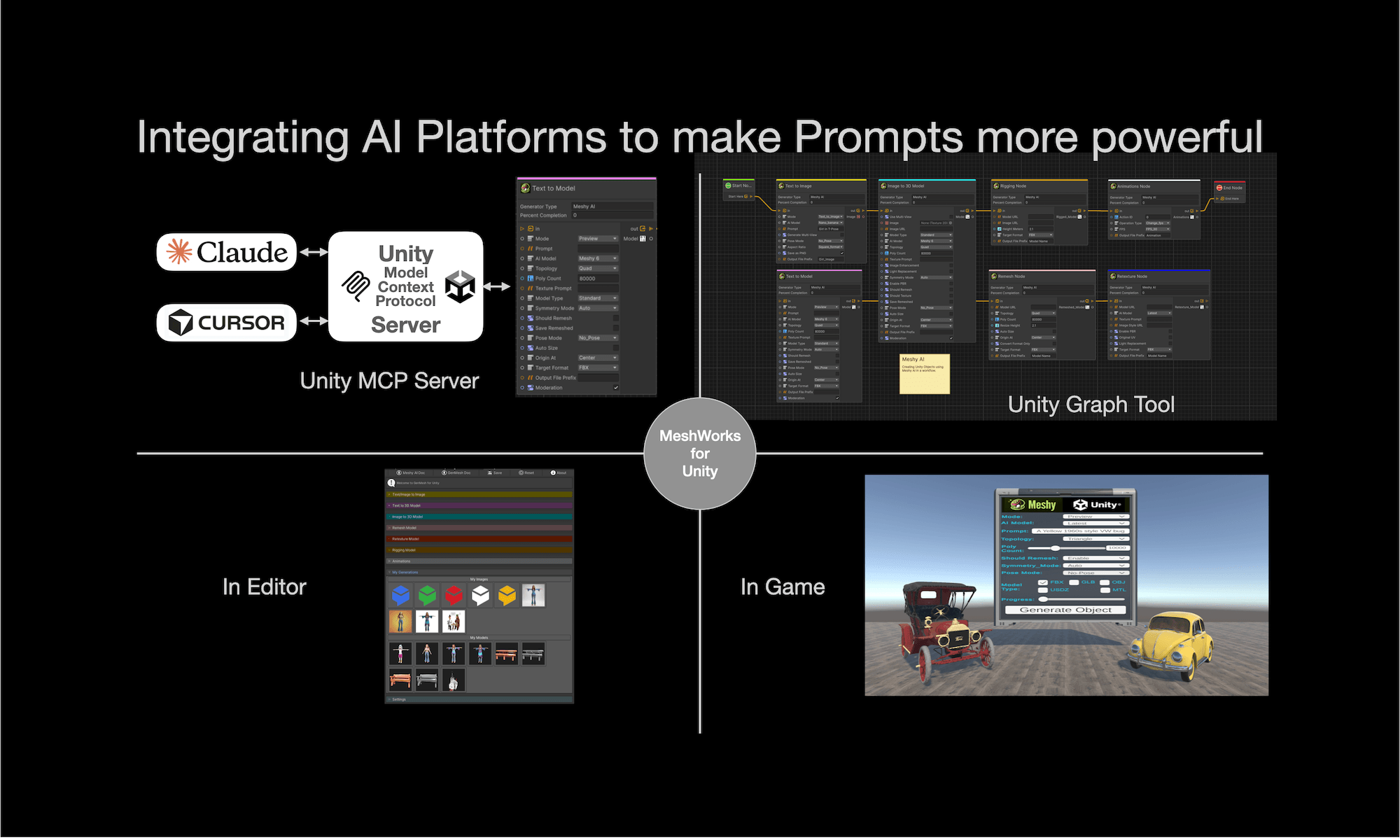
Below are some of the images related to the seven interation points to build with Meshy AI directly from the Unity Editor.
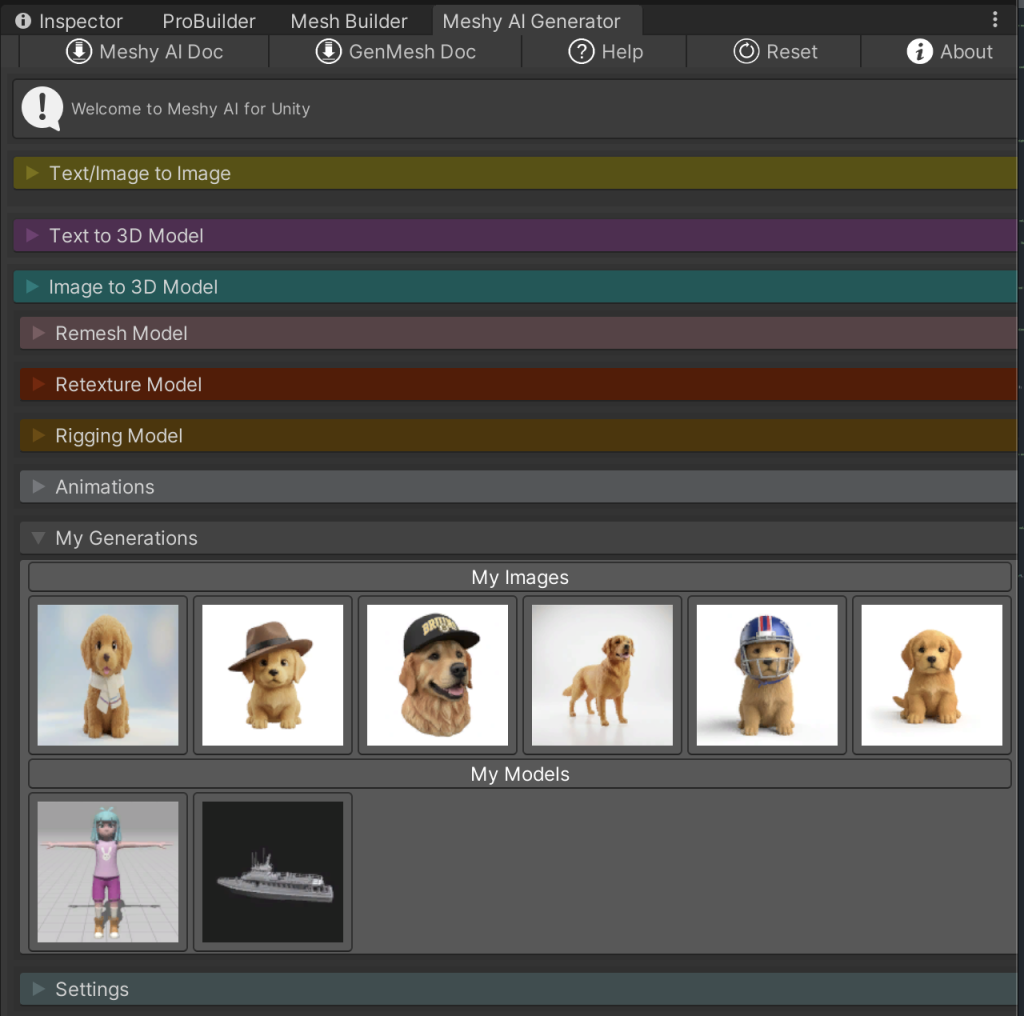
Above shows the Seven Interaction points for GenMesh for Unity for generating/editing images and models. “My Generations” shows images and models that have been created by Meshy AI. “Settings” provides some controls for operating GenMesh for Unity.
Text/Image To Image
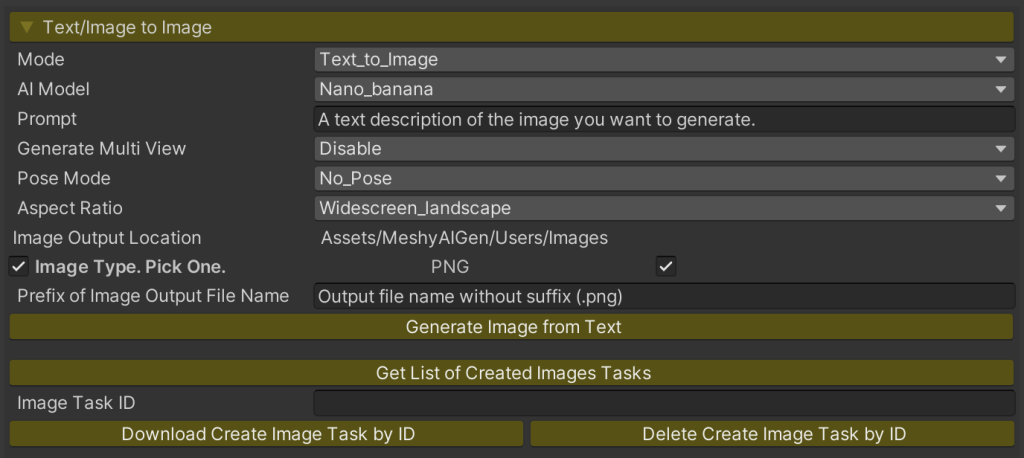
Above shows the “Text/Image to Image” Interactions points for GenMesh for Unity for generating and editing of Images.
- Mode – Text_to_Image Generating Images or Image_to_Image for Editing Images.
- AI Model – Nano_banana or Nano_banana_pro (higher quality).
- Prompt – Text for generating or editing Images.
- Generate Multi View indicates that the response should include multiple angle images.
- Pose Mode – specifies the pose for character generation.
- Aspect Ratio provides the option for different sizes of resulting images.
- Image Output Location indicates where the generated files will be placed.
- Image Type Selection. Currently only PNG is an option.
- Prefix File Name for the Output File Name.
The buttons are self-explanatory. The Image Task Id is used for Image to Image editing when NOT providing the image to modify (but the Task ID that generated the Image originally).
Text To 3D Model
The Text to 3D Model Task Id is used for creating Meshes and adding Textures.
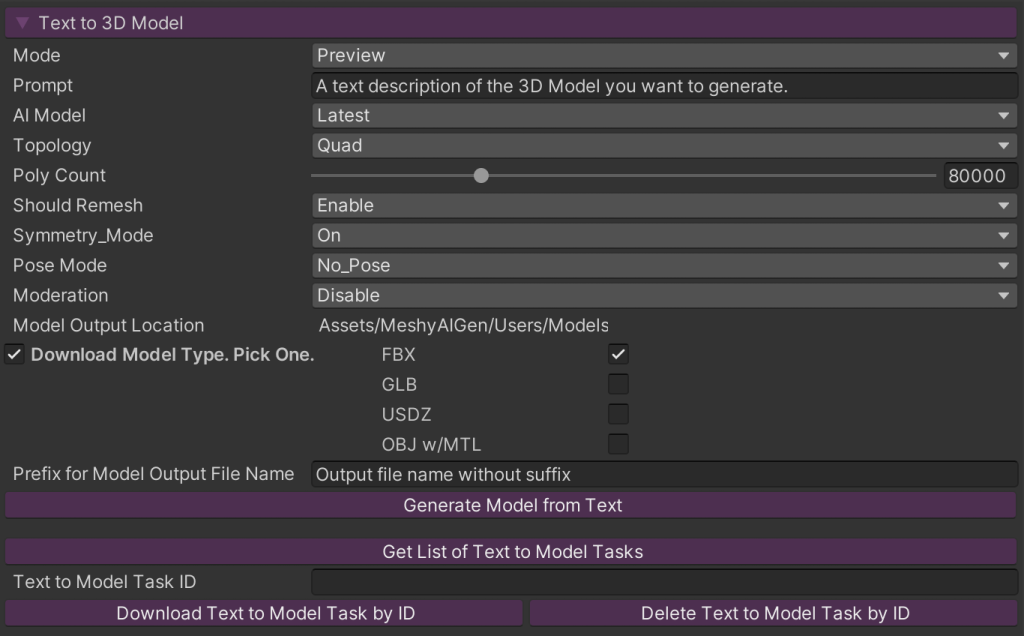
Above shows the “Text to 3D Model” Interaction Point for GenMesh For Unity for Generating and Editing of 3D Models from TEXT.
- Mode is Preview to Generate the Model or Refine to Edit the model.
- Prompt – Text for generating or editing 3D Model.
- AI Model: Meshy-5, Meshy-6 or Latest.
- Topology is either Quad or Triangle.
- Poly Count is the number of polygons in the generated model.
- Should Remesh controls whether to enable the remesh phase. If
false, the API will directly return the highest-precision triangular mesh. If true, involves remeshing the initial model input. - Symmetry_Mode field controls symmetry behavior during the model generation process. Options are Auto, On or Off.
- Pose Mode is the Specify the pose mode for the generated model. Options are A_Pose, T_Pose or No_Pose.
- Moderation: Enable or Disable. If Disable the Task will be automatically be screened for potentially harmful content.
- Image Output Location indicates where the generated files will be placed.
- Image Type Selection. Options are FBX, GLB, USDZ or OBJ (with MTL).
- Prefix File Name for the Output File Name.
The buttons are self-explanatory. The Text to Model Task Id is used for refine editing when NOT providing the model to modify (but the Task ID that generated the model originally).
Image To 3D Model
Above shows the “Image to 3D Model” Interaction Point for GenMesh For Unity for Generating 3D Models from Image(s).
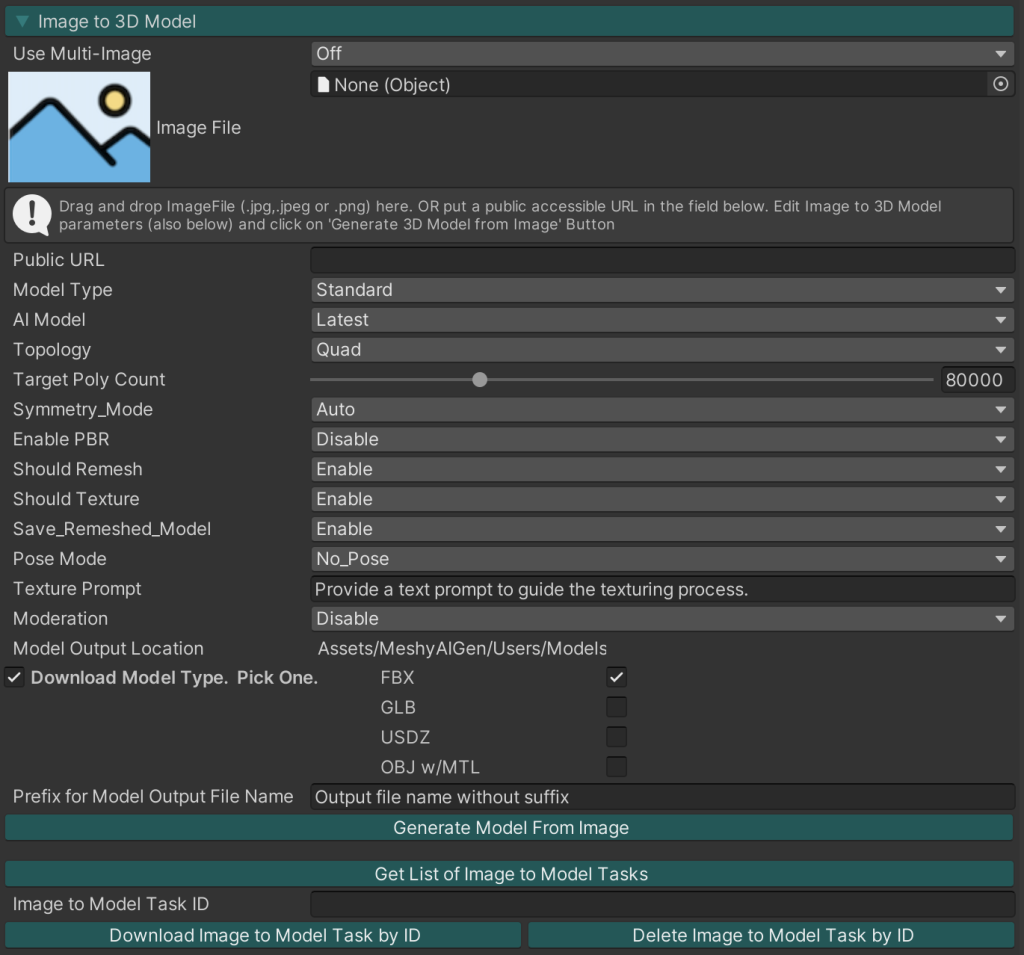
Above shows the “Image to 3D Model” Interaction Point for GenMesh For Unity for Generating 3D Models from an Image(s). Use Multi-Image off – indicates that we are basing the Model Generation on a Single image or Multi-Image of can use Multiple Images (up to 5).
- Image Source is EITHER the Image File (drag and drop) OR a Public URL Image (below).
- Model Type is Standard or Low Poly.
- AI Model: Meshy-5, Meshy-6 or Latest.
- Topology is either Quad or Triangle.
- Target Poly Count is the number of polygons in the generated model.
- Symmetry_Mode field controls symmetry behavior during the model generation process. Options are Auto, On or Off.
- Enable PBR: Generate PBR Maps (metallic, roughness, normal) in addition to the base color.
- Should Remesh controls whether to enable the remesh phase. If
false, the API will directly return the highest-precision triangular mesh. If true, involves remeshing the initial model input. - Should Texture: Determines if textures should be generated
- Save_Remeshed_Model: If Enabled, Meshy stores an extra GLB file before the remesh phase completes.
- Pose Mode is the Specify the pose mode for the generated model. Options are A_Pose, T_Pose or No_Pose.
- Texture Prompt: Provide a text prompt to guide the texturing process.
- Moderation: Enable or Disable. If Disable the Task will be automatically be screened for potentially harmful content.
- Image Output Location indicates where the generated files will be placed.
- Image Type Selection. Options are FBX, GLB, USDZ or OBJ (with MTL).
- Prefix File Name for the Output File Name.
The buttons are self-explanatory.
Remesh Model
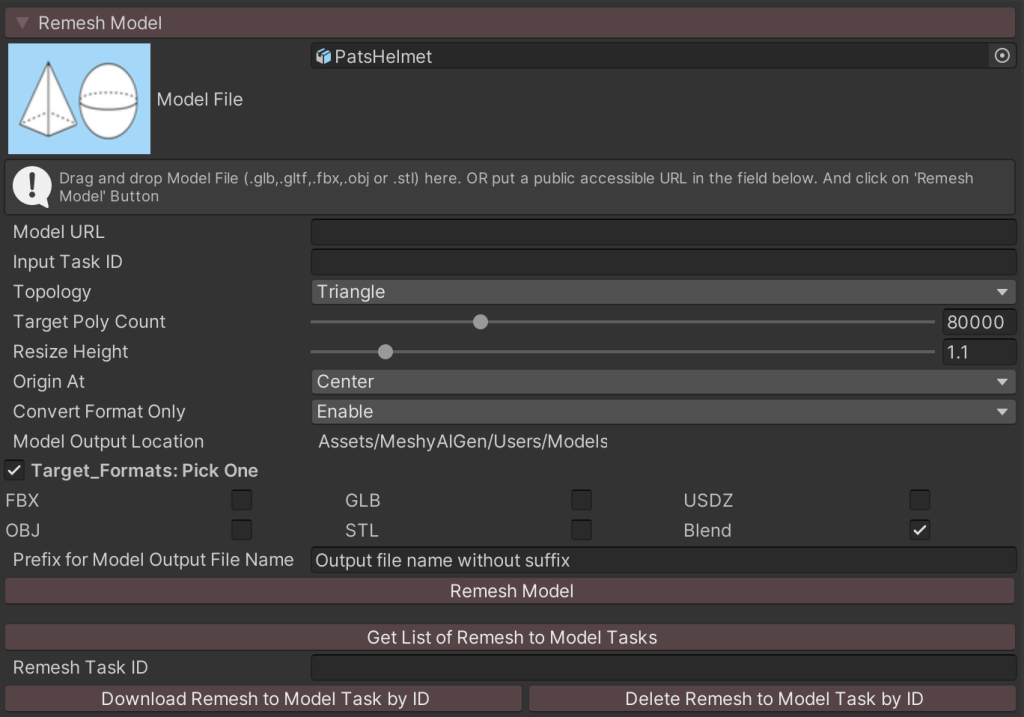
The Remesh Interaction Point allows you to remesh and export existing 3D models generated by other Meshy APIs (like Image to 3D or Text to 3D) into various formats (FBX, GLB,….).
The Retextue Interaction Point allows to improve the Texture for the 3D Model by specify a style image (Local or URL) or style text.
- Model Source is either the Model File (dragged and dropped) OR a Public Model Model (just below the Model File) or the Input Task ID of the Task that created the Model.
- Target Formats are the Format you want your model converted to.
- Topology is the target topology – Triangle or Quad.
- Target Poly Count is the Poly Count of the returned model.
- Resize Height. Returned Model Height.
- Origin At: is pivot point for the return model.
- Convert Format Only: If Enabled, the service will only change the format of the input model file, ignoring other inputs like topology, resize_height and target_polycount.
- Image Output Location indicates where the generated files will be placed.
- Image Type Selection. Options are FBX, GLB, USDZ or OBJ (with MTL).
- Prefix File Name for the Output File Name.
The buttons are self-explanatory.
Retexture Model
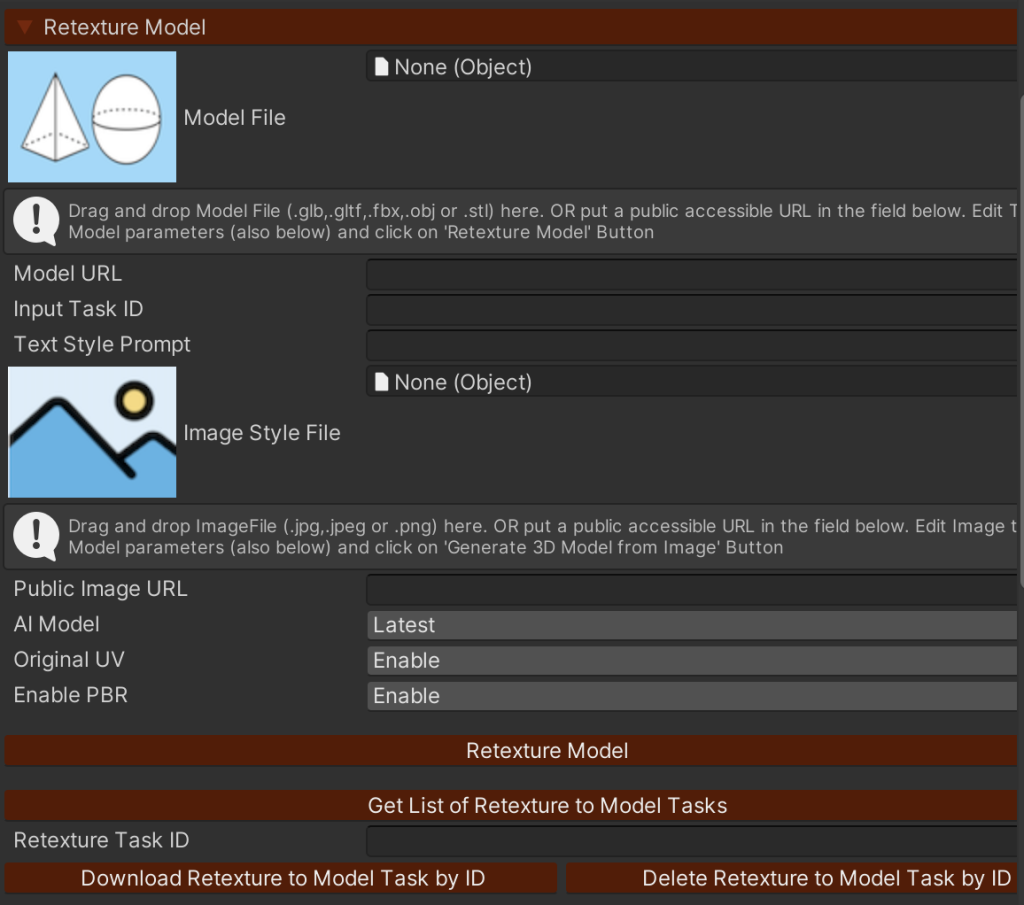
The Retextue Interaction Point allows to improve the Texture for the 3D Model by specify a style image (Local or URL) or style text.
- Model Source is either the Model File (dragged and dropped) OR a Public Model Model (just below the Model File) or the Input Task ID of the Task that created the Model.
- The Output Texture Style is input from the Text Style Prompt or the Image Style File (Dragged and Dropped) or the Public Image URL.
- AI Model. Options are Latest, Meshy-6, Meshy-5.
- Original UV. If Enabled, Meshy AI will use the original UV of the model instead of generating new UVs.
- Enable PBR. If Enabled, Meshy AI will Generate PBR Maps (metallic, roughness, normal) in addition to the base color.
The buttons are self-explanatory
Rigging Model
The Auto-Rigging & Animation Interaction points for GenMesh for Unity enable you to automatically rig 3D models and apply animations through Meshy AI’s backend services.
From Meshy AI: The rigging and animation Interaction Points for GenMesh currently work best with standard humanoid (bipedal) models that have clearly defined limbs and body structures. Models that are not suitable for Rigging are Untextured meshes and Non-humanoid assets.
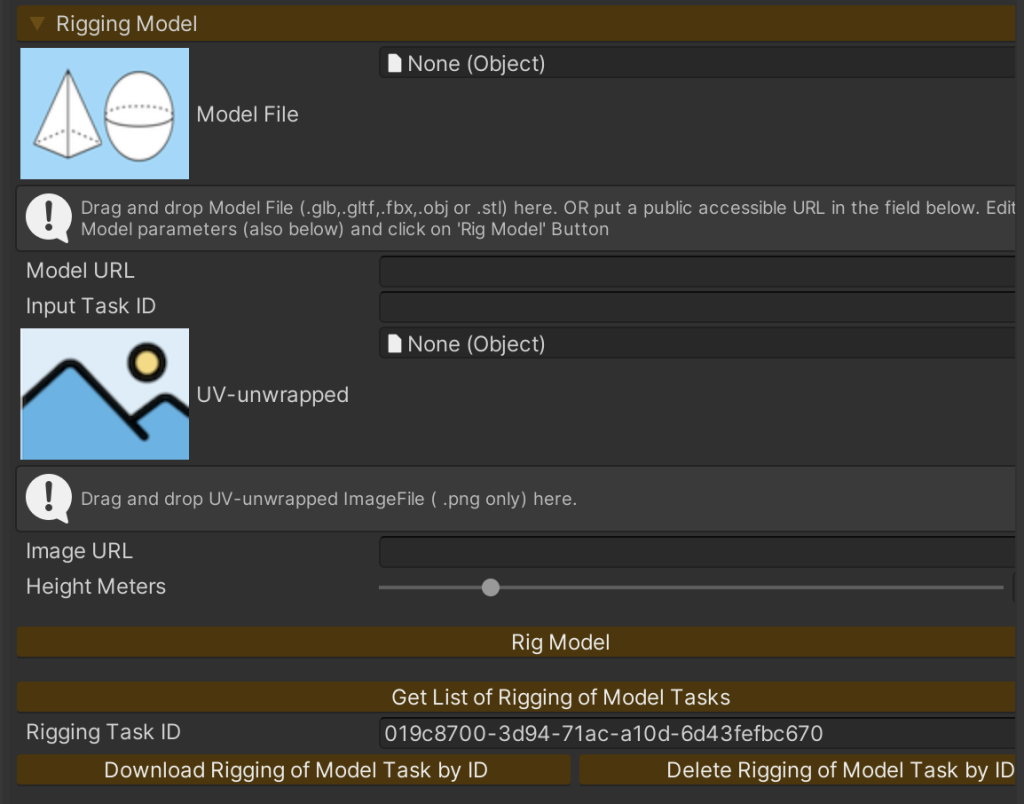
Above shows the “Rigging Model” Interactions points for GenMesh for Unity for Rigging a 3D Model.
- Model Source is either the Model File (dragged and dropped) OR a Public URL Model (just below the Model File).
- If the Model File and the Public URL Model are not specified. The Input Task ID of the Model to be Rigged should be supplied.
- UV-unwrapped: The model’s UV-unwrapped base color texture image.
- Image URL: is public based URL for the UV-unwrapped texture Image.
- Height: The approximate height of the character model in meters.
The buttons are self-explanatory.
Animations
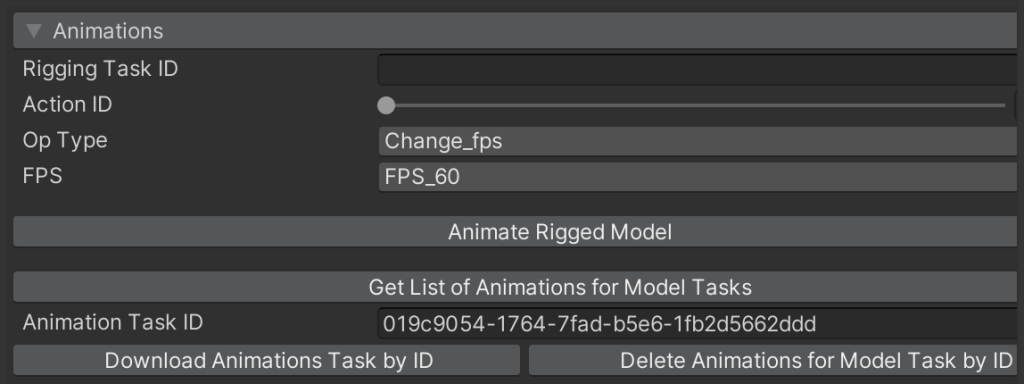
Above shows the “Animations” Interactions points for GenMesh for Unity for downloading the appropriate Animations for the Rigged Model.
- Rigging Task ID: The Task ID of a successfully completed rigging task . The character from this task will be animated.
- Action ID: Is the selected Animation for the Meshy AI Animation Library. More than 500 different animations can be selected from.
- Op Type is Post Processing Options : Change_FPS, Fbx2Usdz or Extract Armature.
The buttons are self-explanatory.
Task IDs
All Generations return Task IDs. Meshy AI retains the existing of the Task for a period of time usually measured in days. While the Task Id is available – they can be re-downloaded (Download Button) or deleted (Delete Button). To Get a List of the available Task IDs you need to request a list of the Task IDs available for a specific end point – this is the function of the List Buttons.